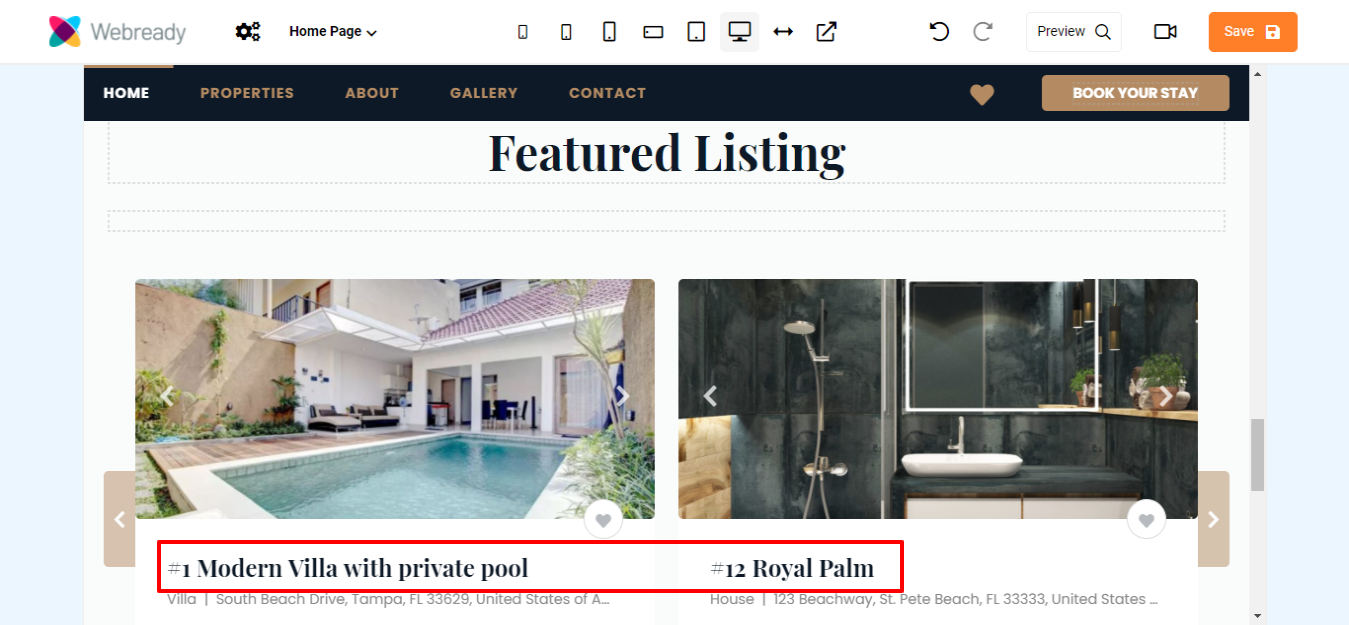
When editing your website you may wish to select Featured Rentals to be used in all "Featured Rental" components throughout your webpages. You may also just want specific rentals to be used for a particular component. We'll show you how to accomplish this below.
Specify the Featured Rentals for your website
Many Webready components contain the "Use Featured Rentals" option below:

Some of the components that take advantage of this setting are:
Home Header
Featured Rooms Section
Rental Sliders Section
Most Popular Properties
Featured Properties Section
For some templates (Tropic, Blacksand, and Veryvine), you can specify the featured rentals in your Global Settings, which will be used for these components. For other, templates, you will have to set the featured rentals directly in the component.
To set the Featured Rentals in Global Settings:
Click on the Settings icon
Select Global Settings

Select the Rentals tab
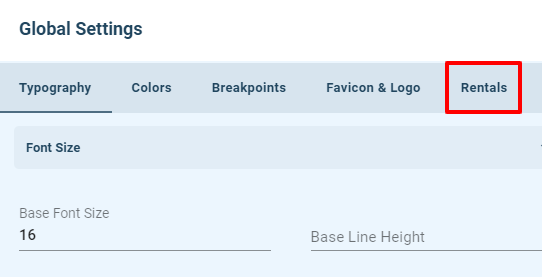
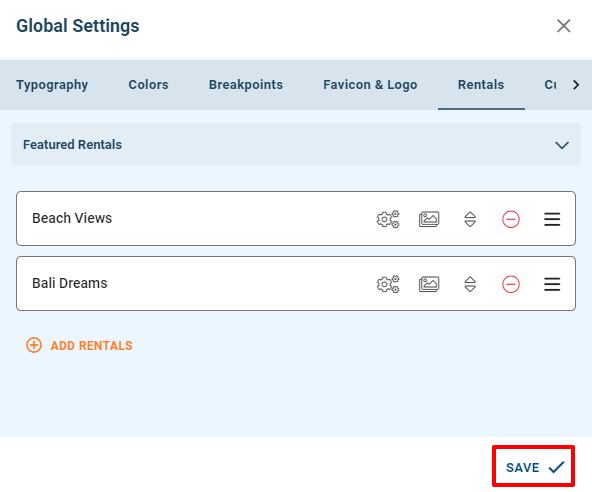
Under "Featured Rentals", click Add Rentals

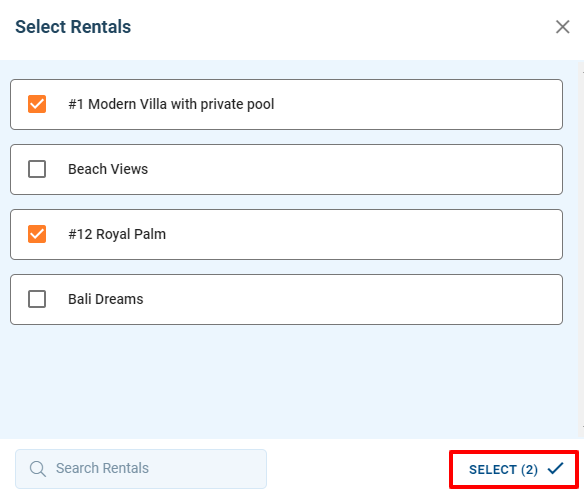
Use the checkboxes to select the rentals you will like to feature then click the Select button
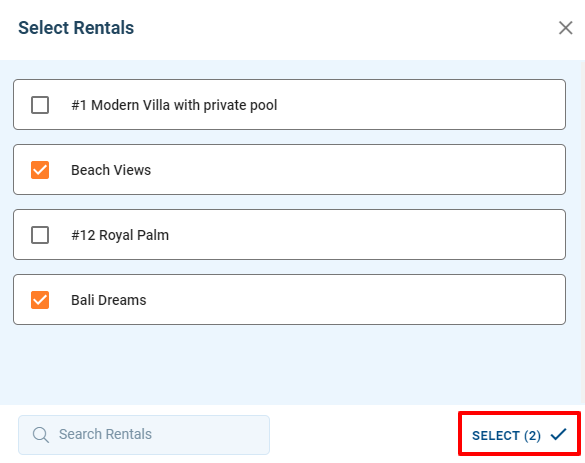
Click Save
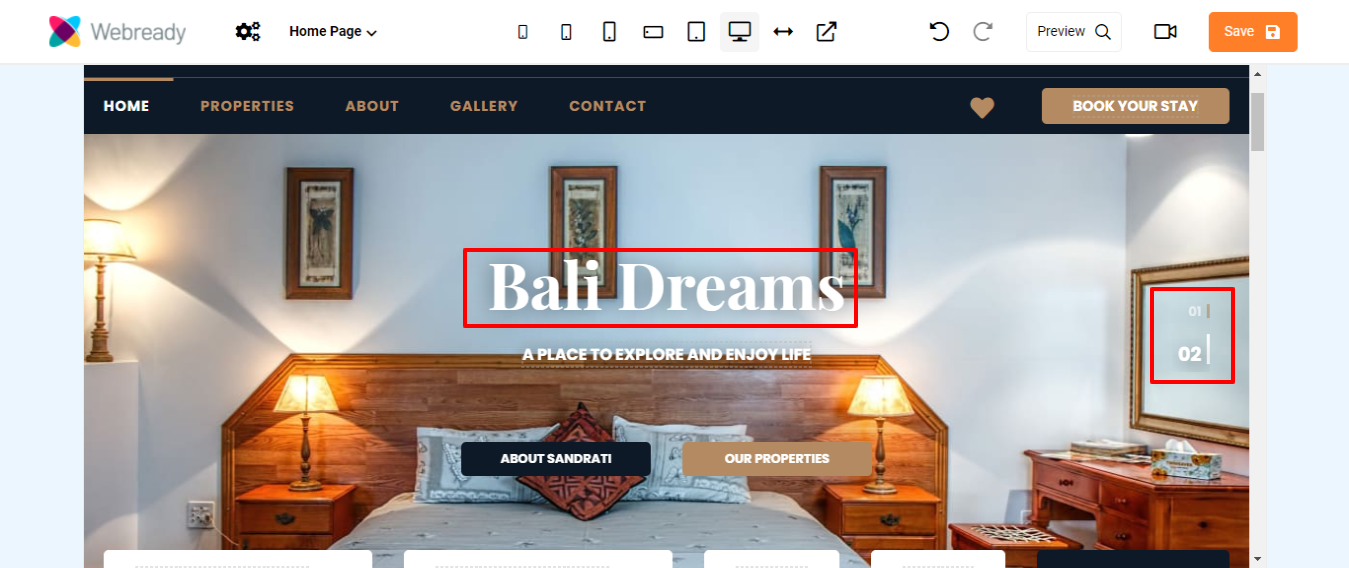
You will see that the components that are using your Featured Rentals now only show the rentals that you entered
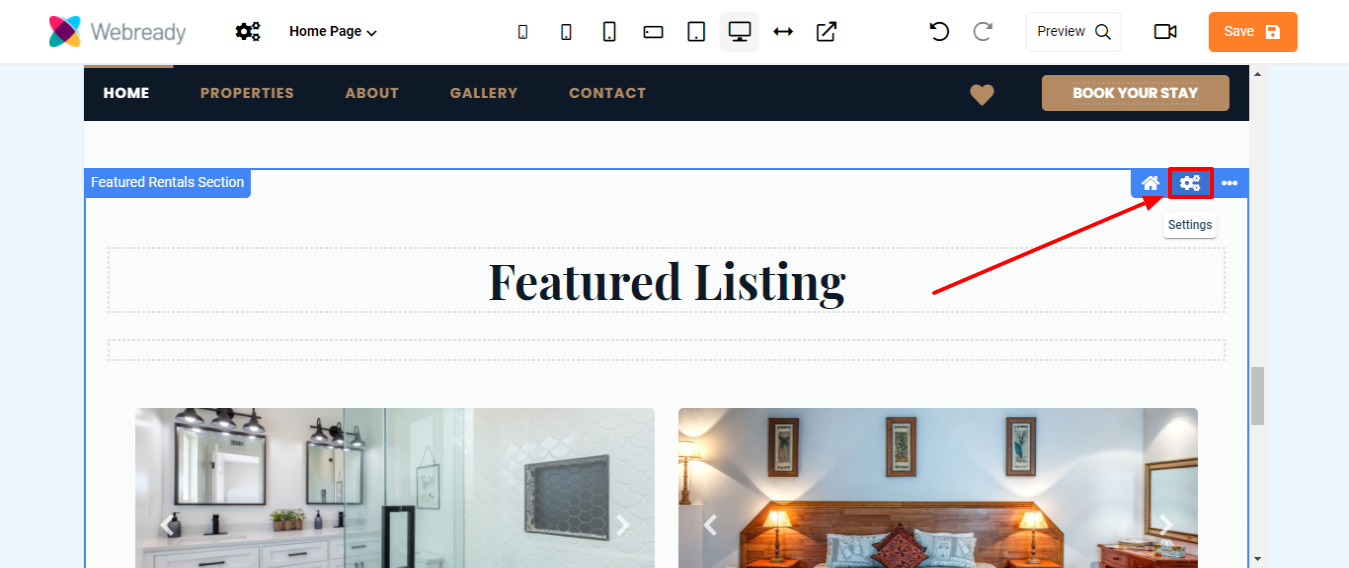
To set the Featured Rentals in the component:
Click on the Settings icon for the component
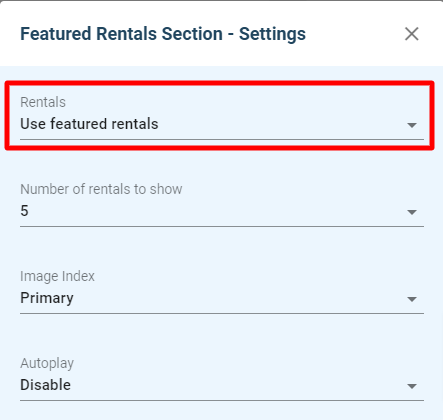
Under Rentals, select "Use featured rentals list", adjust any other settings and click Save
Click on the Rentals icon for the component
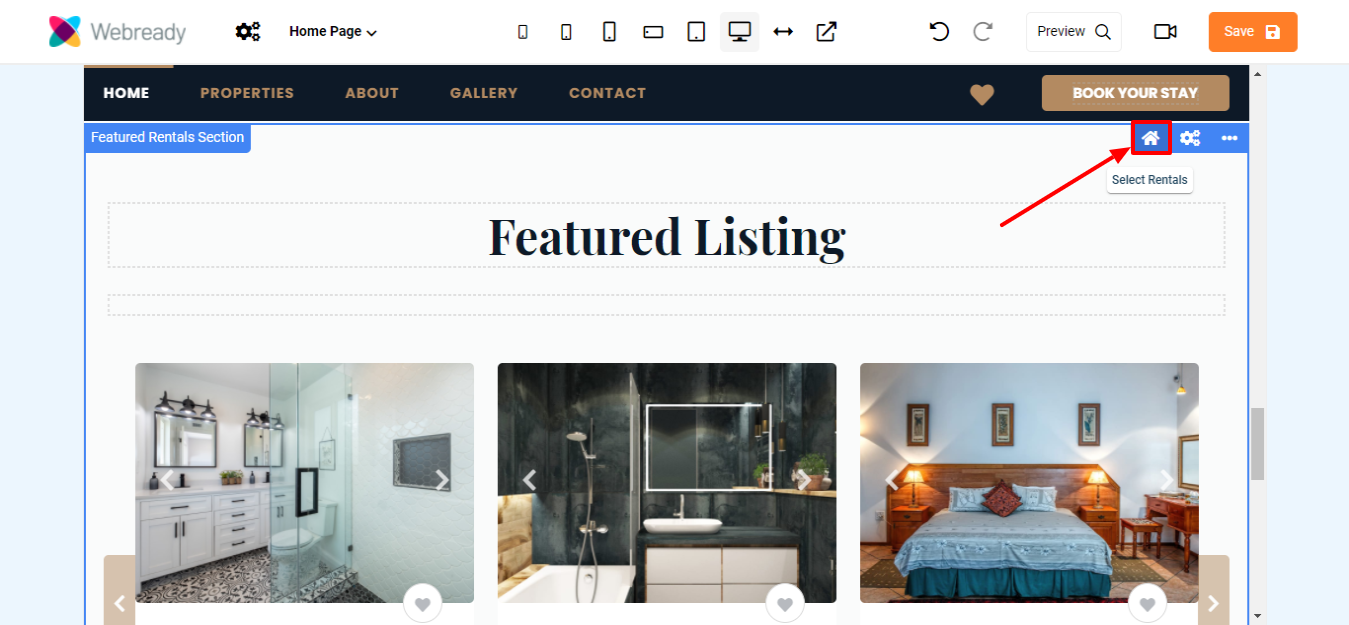
Click on Add Rentals
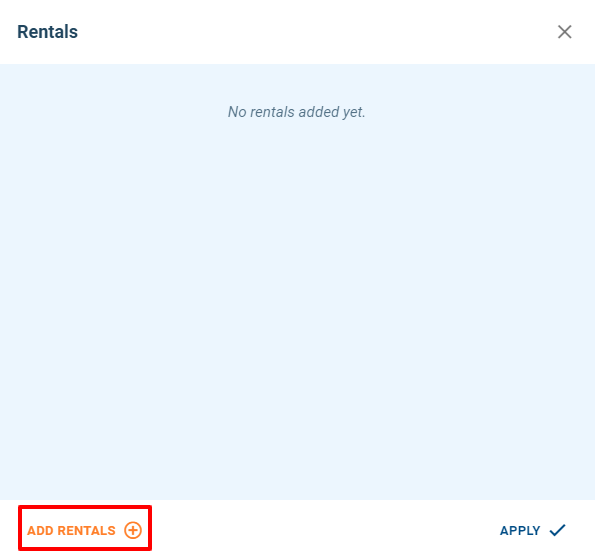
Use the checkboxes to select the rentals you will like to feature then click the Select button

Click Apply
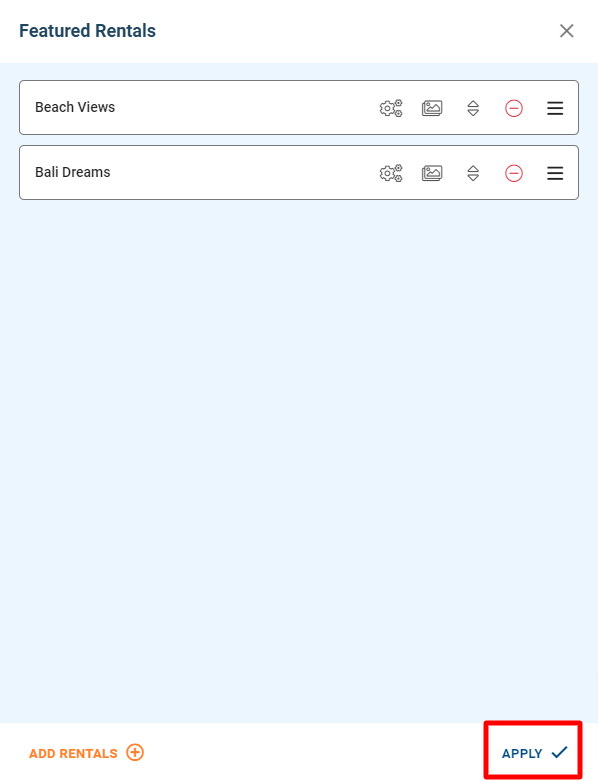
You will see that the component that is using your Featured Rentals List now only shows the rentals that you entered

Use a custom rental list for your components
Some components allow you to choose a Custom Rental List instead of using your Featured Rentals. If you will like to select a different set of rentals for these components, then you can choose this option.
Here is how you will do this:
Click on the Settings icon for the component
Under Rentals, select "Use custom rentals list", adjust any other settings and click Save
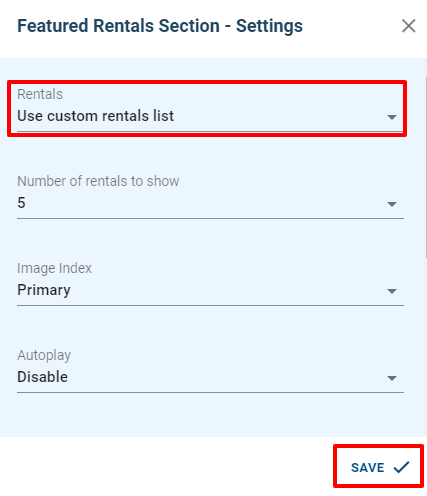
Click on the Rentals icon for the component
Click on Add Rentals
Use the checkboxes to select the rentals you will like to feature then click the Select button
Click Apply
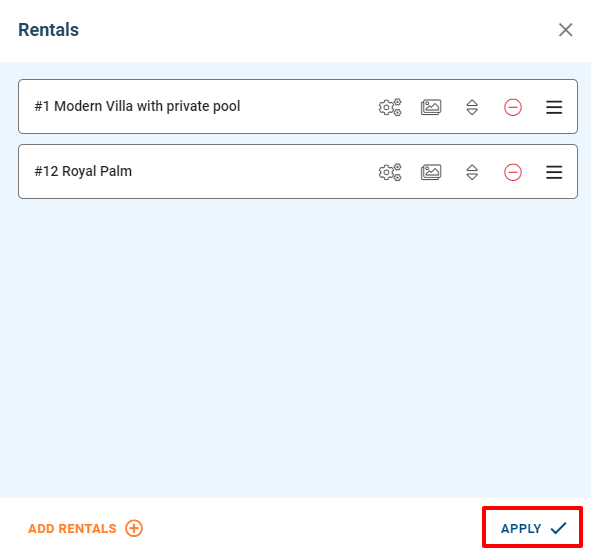
You will see that the component that is using your Custom Rentals List now only shows the rentals that you entered