Webready Help Center Webready Help Center
  • Getting Started
    • How to create a Webready website
    • Understanding Webready Pricing
    • Webready Setup Checklist
    • Webready FAQ
  • Domains
    • Keeping the Free Webready URL
    • Assigning a Domain to your Webready website
    • About Domains
    • Configuring DNS to Point your Domain to Webready
    • Removing a Domain from Your Webready Account
    • Unassigning a Domain from Your Site
    • Securing your domain with an SSL certificate
    • Connecting Your Own Domain Name
    • Adding a Webready Domain
  • Accepting Payments
    • Payment Gateway
    • Payment Rules
    • Accepting Payment On Your Website
  • Managing your Website
    • How do I prevent spam from my website forms?
    • How do I keep track of my bandwidth?
    • How is my bandwidth calculated?
    • About your Website's Storage and Bandwidth
    • How to help my website get listed on Google
    • Exceeding Your Site's Bandwidth Limit
    • Why doesn't my bandwidth match Google Analytics?
  • Webready Editor
    • Booking Settings
      • Booking Form Presets
      • Booking Form Settings - Upsells Tab
      • Booking Form Settings - Discount Codes Tab
      • Booking Form Settings Overview
      • Booking Form Settings - Sidebar Tab
      • Booking Form Settings - Layout Tab
      • Booking Form Settings - Style Tab
    • Editor V2
      • Advanced Search Settings
        • Advanced Search Settings - Rental Card Tab
        • Advanced Search Settings - Layout Tab
        • Advanced Search Settings - Style Tab
        • Advanced Search Settings - Filters Tab
        • Advanced Search Overview
        • Advanced Search Settings - Map Tab
      • Booking Form Settings
        • Booking Form Settings - Layout Tab (V2)
        • Booking Form Settings - Style Tab (Editor V2)
        • Booking Form Settings - Discount Codes Tab (Editor V2)
        • Booking Form Settings - Sidebar Tab (Editor V2)
        • Booking Form Presets (Editor V2)
        • Booking Form Settings - Upsells Tab (Editor V2)
        • Booking Form Settings Overview (Editor V2)
      • Featured rentals and Custom rentals list feature (Editor V2)
      • How do I add or adjust my image logo?
      • Allow Gap Night Setting
      • How do I redirect my pages? (Editor V2)
      • How to use the Website Editor V2
      • Adding Custom Code to your Website
      • Global Settings Overview
      • Contact Form Settings
      • How do I set up a Cookie Policy on my website?
      • How do I add a telephone number to my forms and booking page? (Editor V2)
      • How Do I Access the Webready Editor V2?
      • How to create a text logo for my website?
      • How Do I Add Password Protection to my Website or Webpage?
      • Creating a Custom Page
    • Featured rentals and Custom rentals list feature
    • How do I add a telephone number to my forms and booking page?
    • How do I redirect my pages?
    • How Do I Block Dates from Check-in or Check-out?
    • How to use the Website Editor
  • Reports
    • Margins Custom Report Views
    • Reports Overview
  • eDocuments
    • Automations
      • eDocuments Automations
    • Inbox
      • eDocuments Inbox
      • eDocuments Photo Identification
    • Templates
      • eDocuments Documents
      • Cancel A Pending Signature Template
      • eDocuments Contracts
      • eDocuments Custom Codes
      • eDocuments Templates
      • Share an eDocuments Template
      • Send an eDocuments Template
      • Create A New eDocuments Custom Code
      • eDocuments Forms
      • eDocuments Data Dictionary
      • Create A New eDocument Tag
    • eDocuments Overview
    • eDocuments FAQ
  • Settings & Configurations
    • User Settings & Logins
      • How Do I Add Users?
    • Using Webready in Multiple languages
    • How Do I Add a Chat Box to my Website?
  • Rates
    • What is a Base rate?
    • How do I add a Discount Code?
    • What is a Dynamic Rate?
    • LOS (Length of Stay) Discounts
    • Rate Types in Webready
    • What is a Standard Rate?
  • Integrations
    • Webready Integration with Beds24
    • Webready integration with Pricelabs
    • Webready Integration with Hostaway
    • Webready integration with RentalWise
    • Webready Integration with Hospitable
    • Webready integration with Google's Vacation Rental platform
    • Google Vacation Rentals FAQs
    • Webready Integration with Booking Automation
    • Webready integration with OwnerRez
    • Webready integration with FantasticStay
    • Webready integration with Zeevou
    • Webready integration with Lodgify
    • Webready Integration with Wheelhouse
    • Webready Integration with Uplisting
    • Webready integration with Channex
  • Airbnb
    • Connecting to Airbnb
    • How do I refresh my Airbnb property list?
    • How to Rank Higher on AirBnB
    • Airbnb Connector FAQ
    • Co-hosting with Airbnb
    • Requirements for an Airbnb Rental
    • Airbnb Connector Overview
  • Automation
    • Webready Automations Overview
    • Data Dictionary
    • Automation Templates
    • HTTP Webhook Triggers
  • Rentals
    • Linking Rentals Together
    • How do I delete rentals?
    • Auto sync rental changes
    • Syncing your rentals manually
    • How do I add booking fees to my rental?
    • Manually adding your Rentals
    • Uploading Rentals from a CSV
    • How do I create Rentals?
  • Upsells
    • How Do I Display Upsells on my Website?
    • Upsells Overview
    • How Do I Create a Sale?
    • Upsells Reports
    • How to create an invoice for my upsells?
    • How Do I Create an Upsell?
  • Images
    • How do I add Images?
  • Webready Translator
    • Webready Translator: Translations
    • Webready Translator Overview
    • Webready Translator: Formats
    • Webready Translator: Languages
  • Invoices & Billing
    • Invoice Management
      • How to create Invoice templates?
      • Invoicing & Payments
      • How Do I Make Changes to an Invoice?
      • Scheduling Invoices
      • How to set up Invoice Rules?
      • Creating Credit Notes
      • How Do I Request a Partial Payment or Deposit Payment?
      • How Do I Charge a Guest for Multiple Items on an Invoice?
    • Payment Gateways
      • How Do I Accept Payments Online and Via Credit Card?
  • Managing your Account
    • How Do I Add or Remove My Credit Card?
    • Account Info Overview
  • App Store
    • App Store Billing & Subscriptions
    • App Store Overview
    • App Store FAQs
  • Messages
    • Messages: Spam
    • Messages Overview
    • Messages: Email Notifications
    • Messages: Inbox
    • Messages: Spam Filters
    • Messages: Templates
  • Webready Bookings
    • Webready Calendars Walkthrough
    • Creating Hold Events in Webready
    • Creating a Manual Booking
    • How Do I Delete an Inquiry?
    • How Do I Edit Bookings?
    • Creating a Website Booking Link
    • Importing an External Calendar
    • How do I view my messages?
    • Webready Booking List
    • Making Reservations for Individual Bedrooms
Domains / Configuring DNS to Point your Domain to Webready /
Website Login

Configuring DNS to Point your Domain to Webready

You must configure the DNS settings of your domain to point to Webready.

If you are on the Free plan and wish to connect your own domain name, you must first upgrade your site by purchasing a plan.

Before updating the DNS settings in your domain host account, go to the Domains page in your Webready dashboard and add your desired website domains by selecting Add Domain, then Custom Domain. 
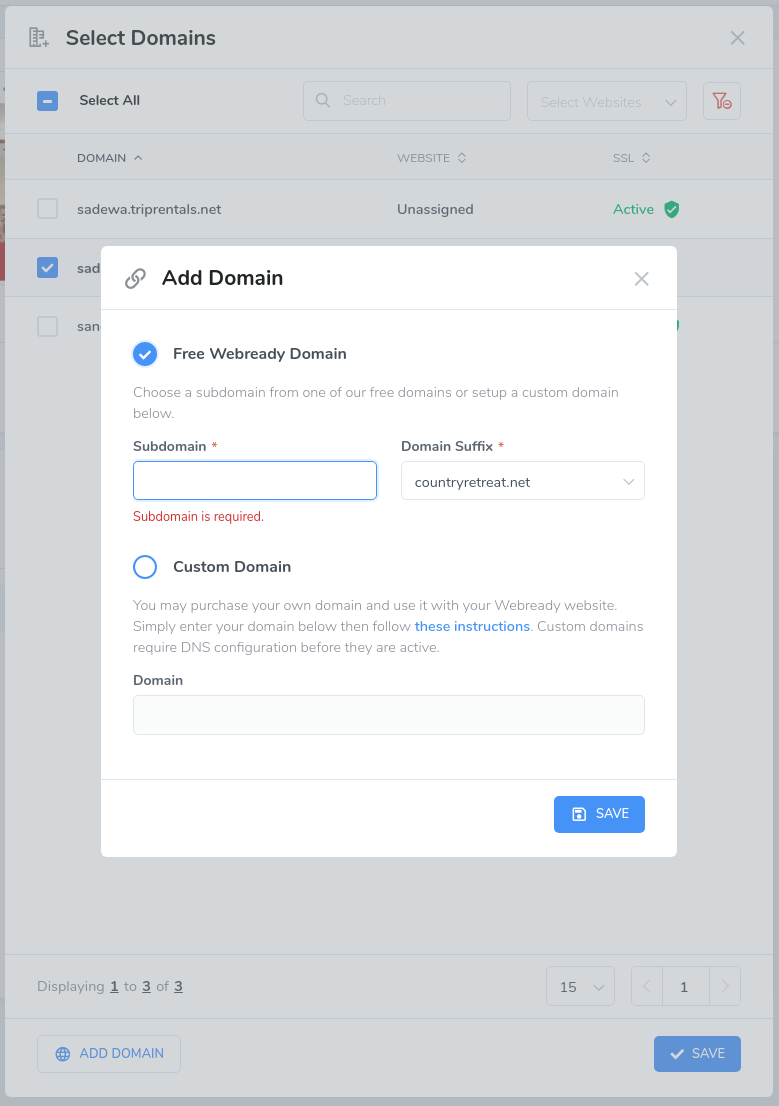
When adding a custom domain, you must do this step twice, once for the domain without "www" and one with it included. e.g. mydomain.com and www.mydomain.com

Now, you will configure your DNS settings to point these domains to your Webready website.

  1. Login to your domain registrar's website and locate the DNS (Domain Name System) settings for your domain.

  2. Create a new CNAME record pointing to websites.usewebready.com. For example, you may have a domain called villarentals.com, so you will create a CNAME DNS record for www.villarentals.com and point it to websites.usewebready.com. Now, anytime a guest enters www.villarentals.com into their browser they will be directed to your website.

  3. Create or update your domain's A record to point to either of these IP addresses 75.2.52.75 or 99.83.207.237.  Updating your A record means that any requests to villarentals.com, without the leading www, will also be directed to Webready.
    This is an example of proper CNAME and A Record configuration

    Important: Please ensure that if there was already an A or CNAME record for the names in this image (@ and www), that they are deleted first or updated to have the values shown here. There should only be one instance saved.
  4. Also, you must assign both domains (e.g. villarentals.com and www.villarentals.com) to your website in the Webready domains section.
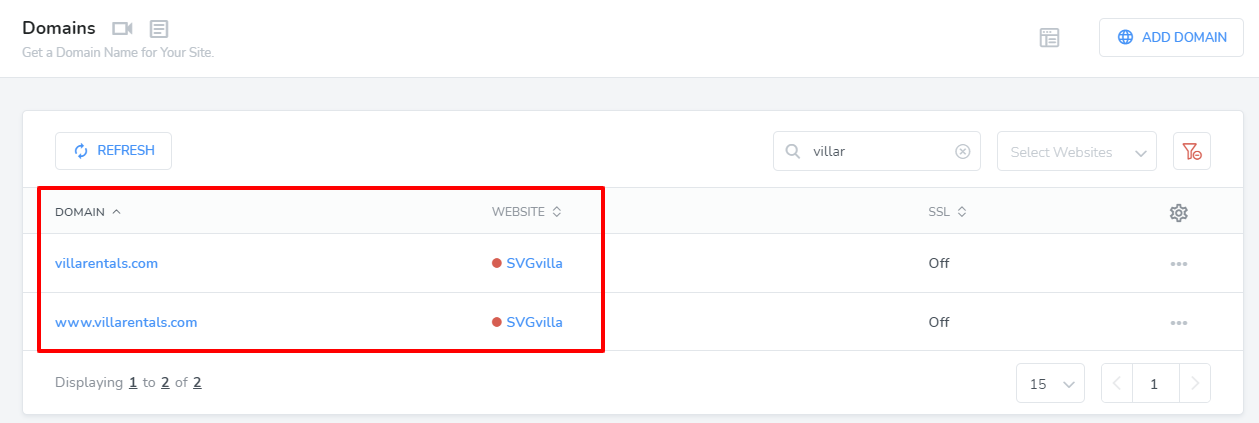
  5. Be sure to request SSL certificates for each from within Webready. See this link for details on securing your website.

You must update both your CNAME and A record with your domain host. If you don't, your site will appear as unsecure and your visitors may see a warning message.

If you're having trouble updating your DNS records, contact your domain host for assistance. For your convenience, we've created this email template to help you explain what you need to do.

Note: Your DNS settings may take up to 72 hours to activate depending on your domain registrar. If your custom domain still isn't taking you to your website after 72 hours, contact your registrar to make sure you entered the DNS settings correctly.


How did we do? Thank you! We appreciate your feedback.
Website Login
Copyright © 2026 Webready. All Rights Reserved.
No documents match your search.
Searching...